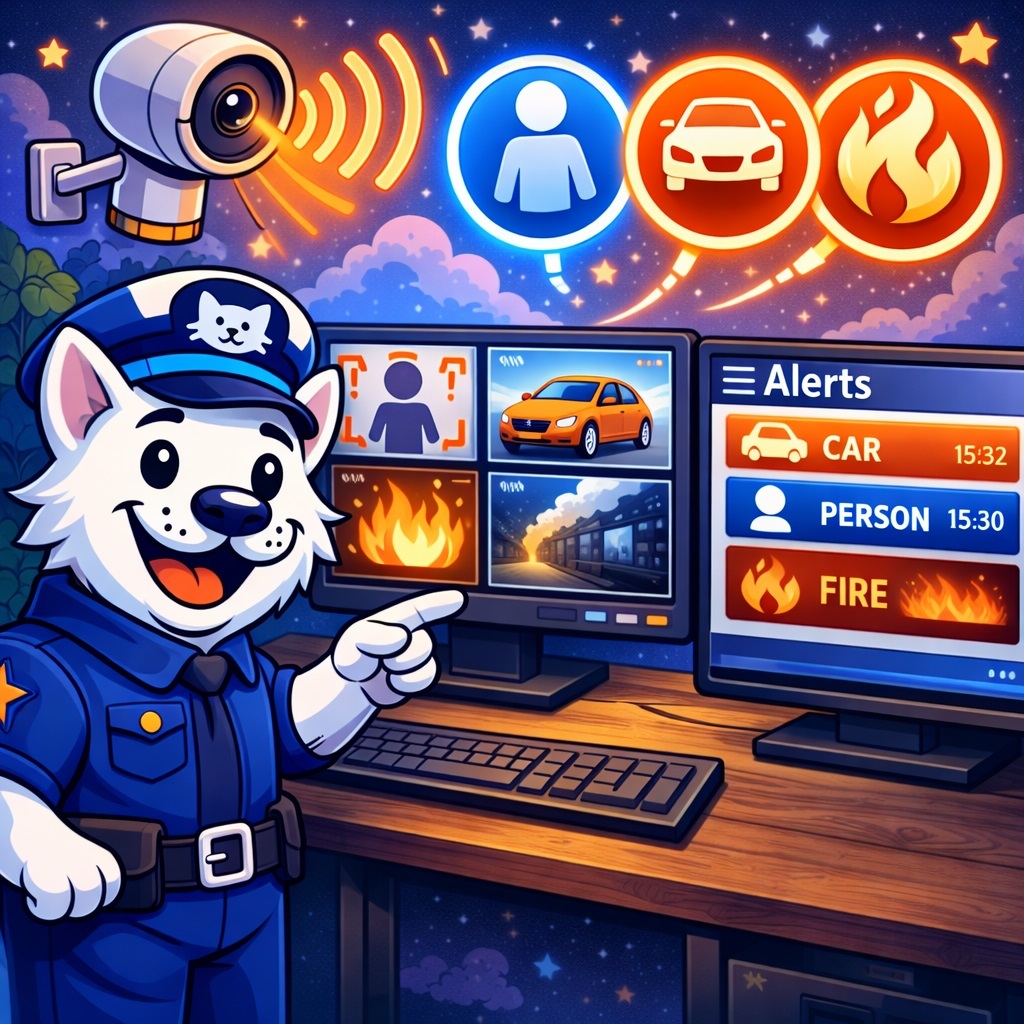
What’s New in SmartVision 5.8?
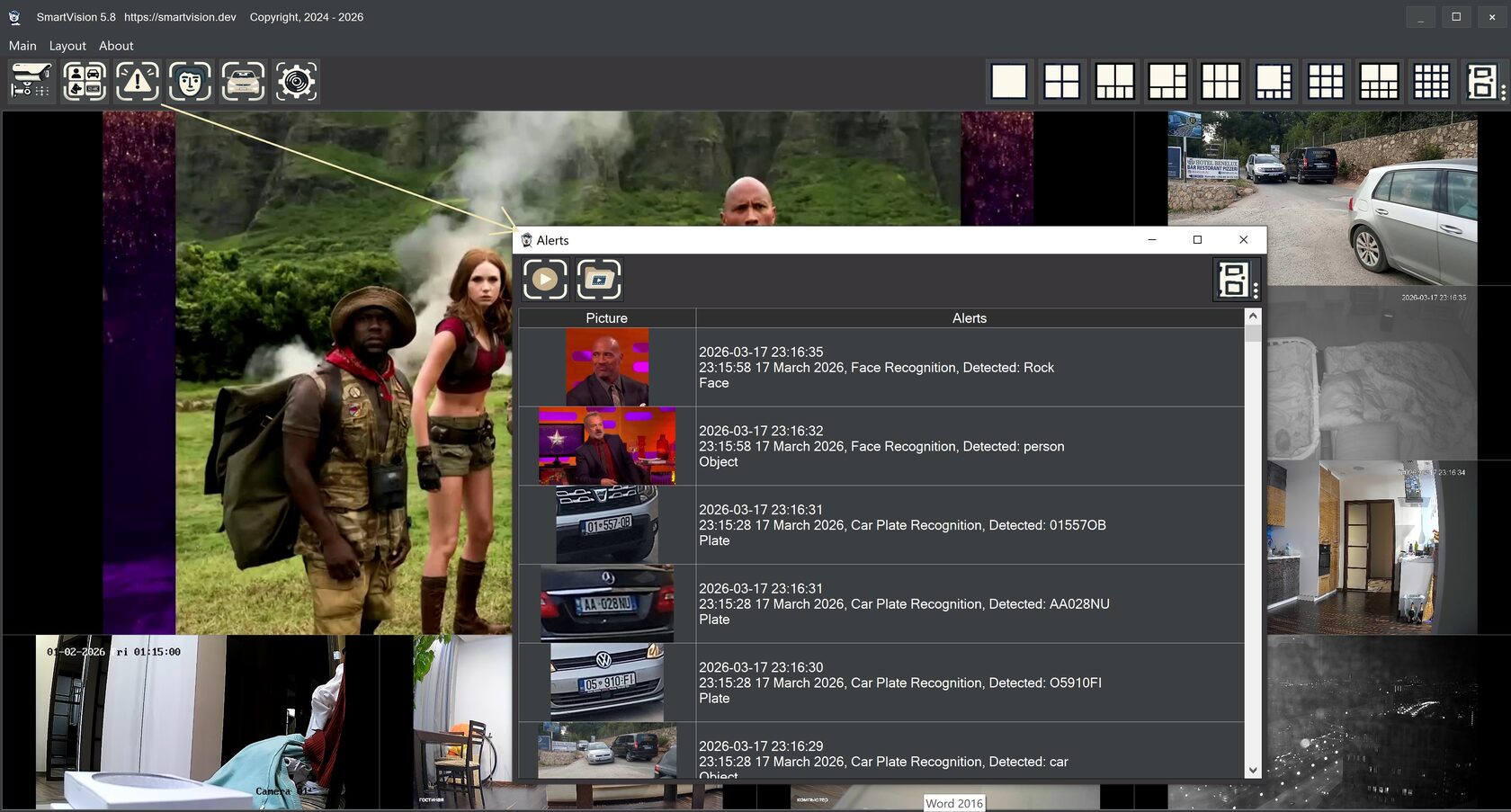
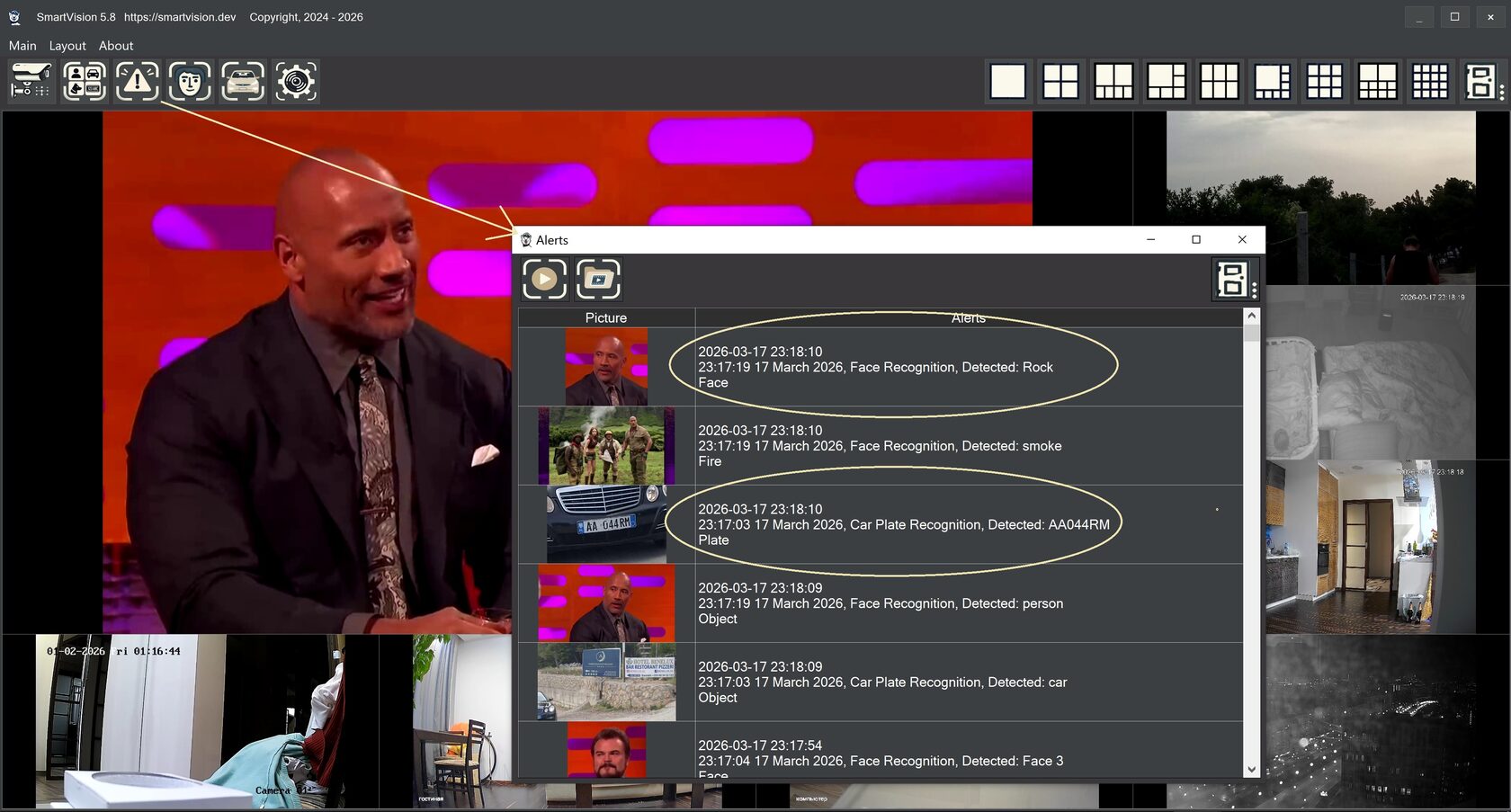
One of the key updates in SmartVision 5.8 is the new non-modal window for displaying fast notifications, called Alerts. In addition, the Events window now also works in non-modal mode.
Previously, windows like these in the interface often felt like a temporary pause in work: open the window, review the data, close it, and return to what you were doing. Now the workflow is much more convenient. The Alerts window and the Events window can be opened separately, placed on another monitor, and left there while the operator continues working normally in the main SmartVision interface. These windows no longer block user actions, do not interfere with switching between cameras, settings, and archive playback, and no longer force the user to keep closing one window just to work with another.
This approach is especially useful when the system is used as a security monitoring tool. For example, an operator can place the Alerts window on one screen, the Events window on a second screen, and leave the main program interface on a third monitor for live camera viewing, equipment configuration, or other system functions.
What Is the Difference Between the Events Window and the Alerts Window?
Although these two windows are closely related, they serve different purposes and complement each other.
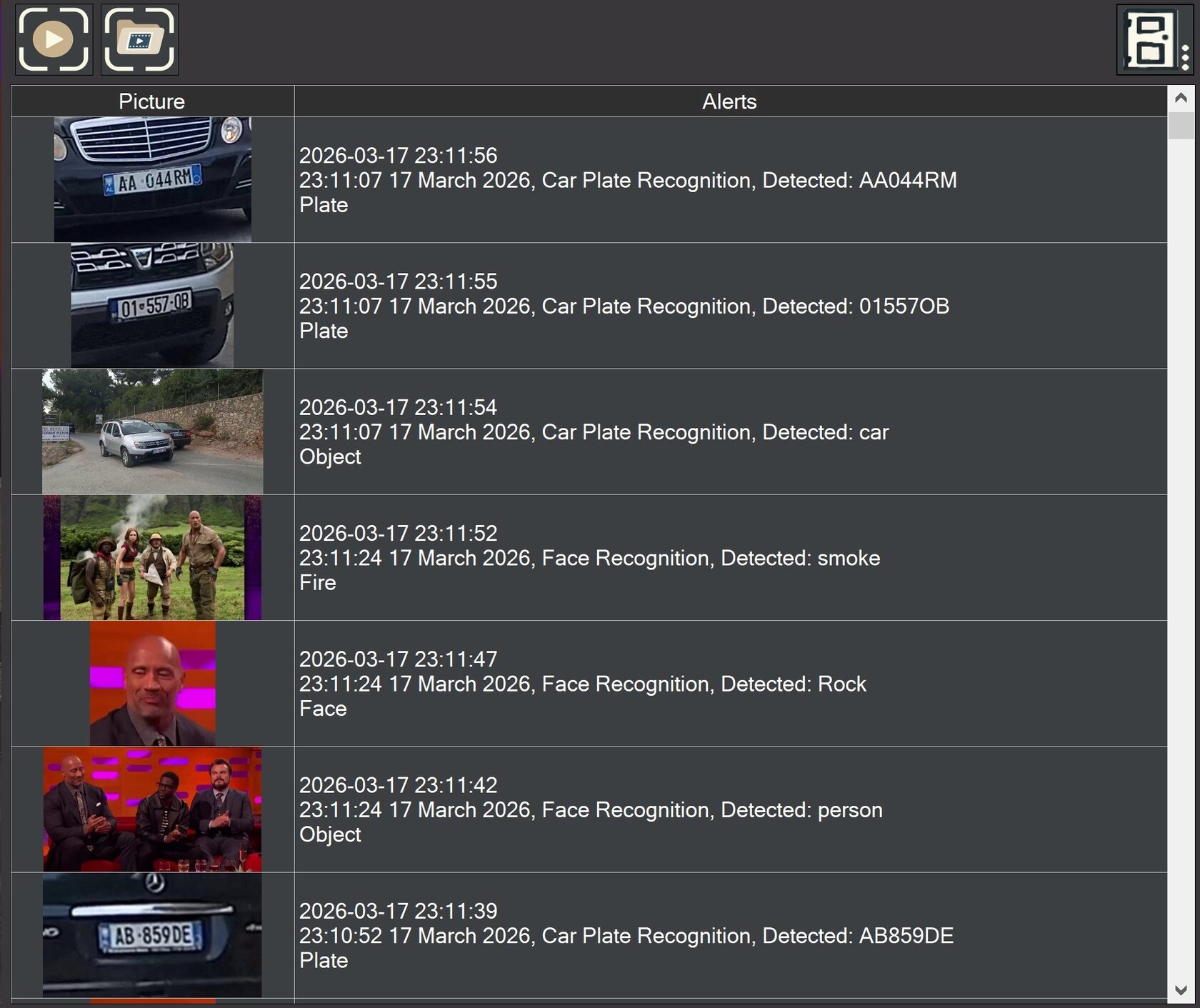
The Alerts window is designed primarily for instant notifications about important detections. Its main purpose is to show the operator as quickly as possible what exactly has happened and to provide immediate visual confirmation in the form of an event snapshot. In other words, the user receives a short and clear signal almost instantly: recognition has occurred, an object has been detected, an alarm condition has been identified, and the system immediately displays the corresponding frame. This is especially useful in situations where rapid response matters and the operator needs to assess the event quickly without opening the archive or watching a longer recording.
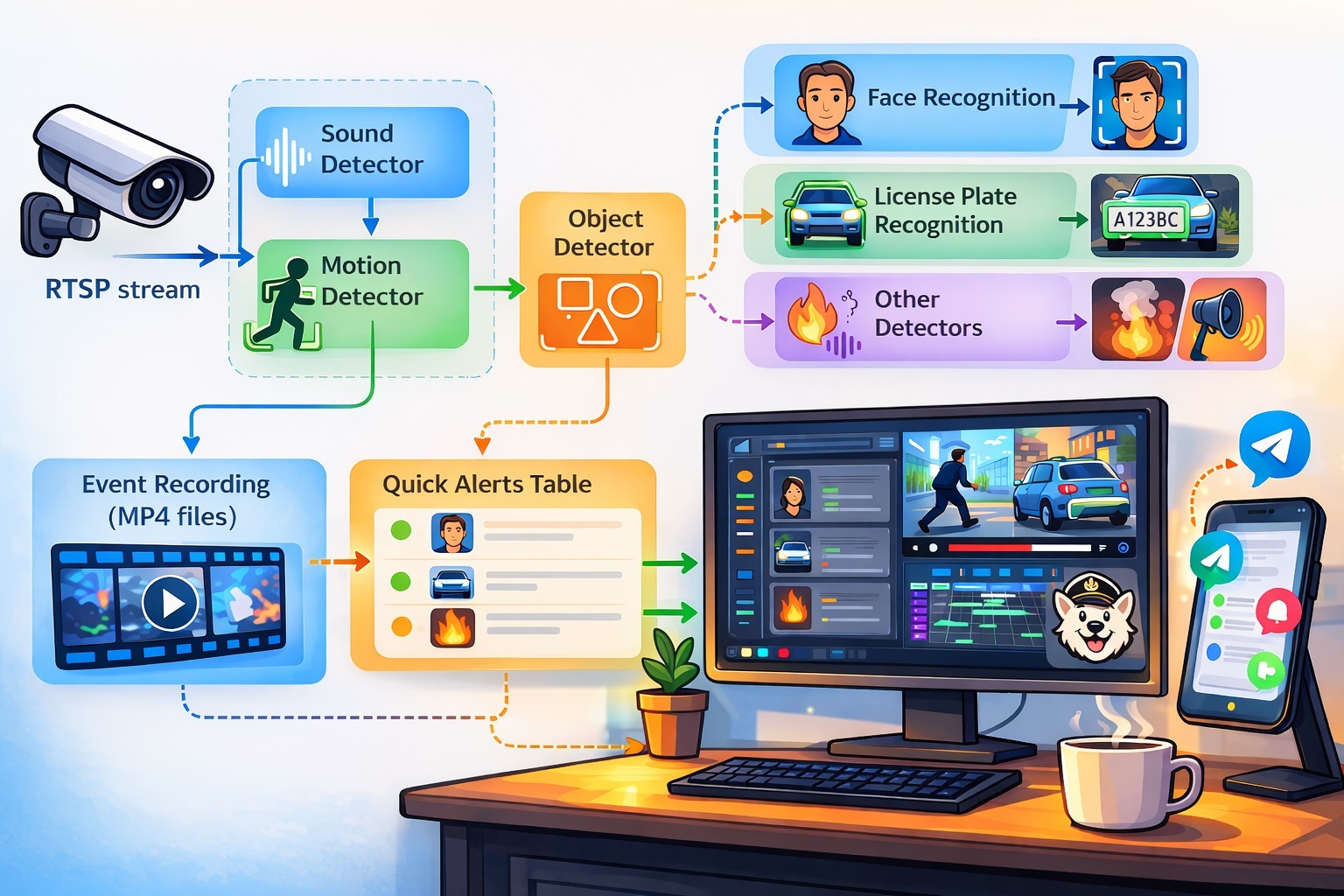
The Events window plays a different role. While the Alerts window focuses on instant notification and displaying a single frame, the Events window is intended for more complete analysis of what happened. When a detector is triggered, the system records the event as video, allowing the user to review not just one captured frame, but the full video clip associated with the detection. This makes it possible to understand the context: what happened before the object was detected, how the situation developed, whether the object appeared in the frame accidentally or deliberately, and whether the detection is truly significant in practice.
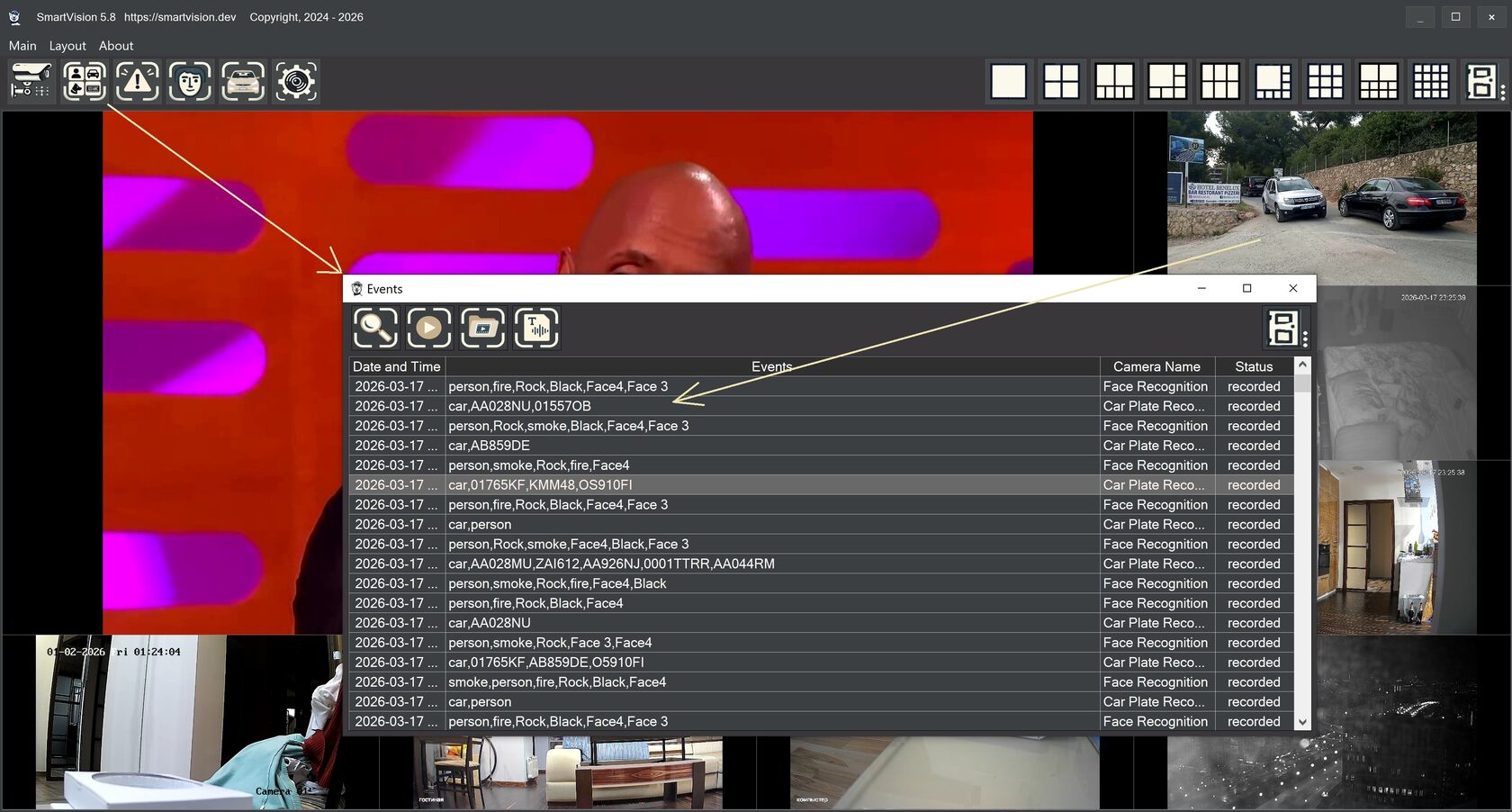
That is why Alerts and Events are linked together. A user can first see an instant notification with a photo and then, if necessary, move to the related event and watch the video. This approach combines two levels of perception: fast visual awareness and detailed follow-up analysis. As a result, the system does not merely report that something happened, it provides a convenient path from the first signal to full investigation.
Flexible Alerts Configuration for Each Camera
Another important advantage of SmartVision 5.8 is that each camera can be configured separately to define exactly which events should appear in the Alerts window. This is especially important in large and mixed surveillance systems, where different cameras serve different purposes and operate under different conditions.
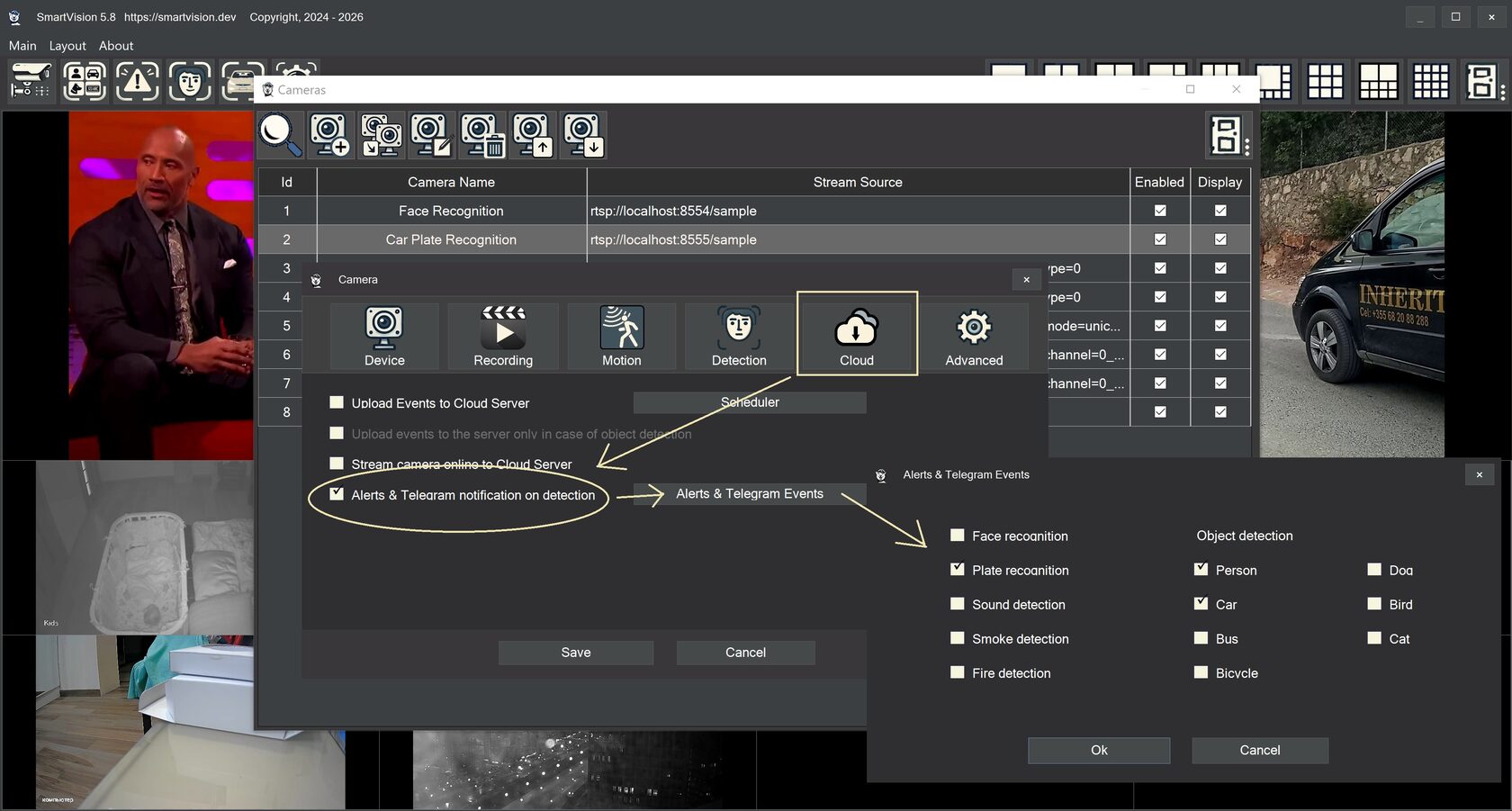
The user can decide which notifications are truly important for a specific camera and which ones should be hidden to avoid overloading the interface with unnecessary information. One camera can be configured to show alerts only for face recognition. Another camera can use alerts only for license plate recognition. A third camera can display only smoke and fire detection events. A fourth camera can be configured to show alerts for specific sound recognition events.
This principle is particularly useful in real-world operation. A camera at an office entrance is logically used for face recognition. A camera at a parking entrance is better suited for license plate recognition. A camera in a technical room may be focused on detecting smoke, fire, or unusual sounds. If all event types are sent into one common window without filtering, the system quickly starts generating too much noise, and truly important notifications get lost in the stream of secondary messages.
That is why the ability to selectively enable and disable alerts for individual cameras is such a practical working mechanism. It allows the system to be adapted to real usage scenarios, reduces unnecessary messages, and makes notifications genuinely useful. A good video surveillance system should not only notice a lot, it should also know when to stay quiet.
Sending Alerts to Telegram With Limits and Restrictions
In addition to displaying alerts inside the program itself, SmartVision also allows notifications to be sent to Telegram. This gives the user an additional channel for receiving important alerts quickly and makes the system more convenient in situations where it is not possible to stay at the workstation all the time.
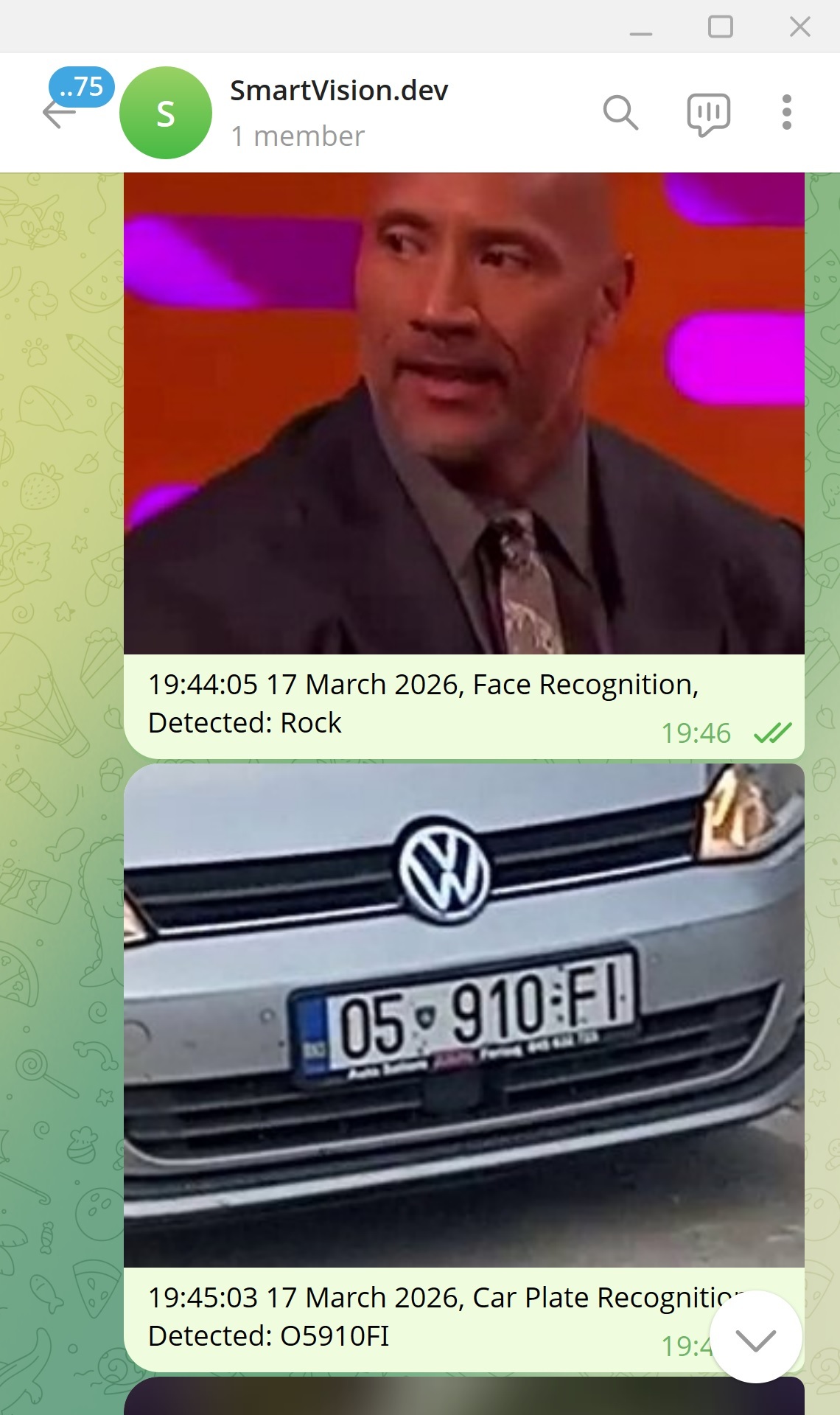
The user can define custom limits and restrictions so the system does not turn the messenger into an endless stream of notifications. This is especially important at sites with a large number of cameras and active detectors, where even a useful function can quickly turn into a test of patience if left without limits.
Configurable limits help maintain the right balance between responsiveness and convenience. As a result, Telegram becomes a genuinely useful tool for quickly receiving important information about events at the site.
Configuring Face Recognition and License Plate Recognition Accuracy
It is also worth noting that the accuracy parameters for face recognition and license plate recognition can be configured through an INI file. For professional users, this feature makes it possible to fine-tune the system for specific operating conditions, camera types, surveillance scenes, and recognition quality requirements.
By default, the SmartVision demo configuration uses settings that allow the system to operate without overly strict camera installation requirements. This is intentional. Demo mode should showcase the system’s capabilities across a wider range of conditions, including imperfect viewing angles, imperfect lighting, and cameras installed without precise engineering preparation. This makes the system more convenient for initial evaluation, testing, and pilot deployments.
However, it is important to understand that maximum recognition accuracy always requires better source data. If the goal is to improve the accuracy of face or license plate recognition, the number of frames per second sent to the detector must be increased. The more frames are available for analysis, the higher the chance of getting a good angle, a clear moment of object appearance, and enough information for confident recognition. In other words, high accuracy begins not only with algorithms but also with a proper video stream. There are no miracles here: if the input is one muddy frame, the output will not be magic either.
What This Means in Real Operation
Taken together, the changes in SmartVision 5.8 make the system much more convenient for continuous operation. The new non-modal workflow of the windows allows users to build a truly comfortable workspace. The operator is no longer limited to a single active window and can arrange the interface much more efficiently. Fast notifications provide instant awareness of what is happening. The Events window makes it possible to immediately move to the related video recording and analyze the situation in more detail. Flexible per-camera configuration helps eliminate unnecessary informational noise. Telegram integration makes notifications available even away from the workstation. And the ability to tune recognition parameters makes it possible to adapt the system more precisely to the real conditions of each site.